 knacksnews
Best Free Tools to Resize Bulk Images Before Uploading to WordPress
The images on your WordPress site are very important to how it looks and how quickly it runs. But posting big pictures without resizing them can make your site load more slowly, hurt your SEO, and make people angry. When that happens, batch resize comes in handy. You can change the size of many images at once, which saves time and keeps your website running quickly. This post will show you easy and effective ways to batch-resize images before uploading them to WordPress. You’ll learn why it matters, what tools you can use, and how to make the process simple.
Why Batch Resize Images Before Uploading to WordPress?
When high-resolution images are uploaded directly to WordPress, the site often becomes bloated with large files. These files consume more storage and bandwidth, which can affect hosting costs, user experience, and Google rankings.
Here are the key reasons why resizing images in batches is highly recommended:
- Improves Website Load Speed: Large image files are one of the top causes of slow page loading.
- Boosts SEO Performance: Search engines favor faster websites. Optimized images play a big part in SEO.
- Reduces Bounce Rate: Visitors tend to leave websites that take too long to load.
- Saves Hosting Space: Smaller images take up less space and help keep hosting plans affordable.
- Prepares Images for Consistent Display: Using standard image sizes improves design consistency across the site.
Batch resizing ensures all images are optimized for web use without the hassle of editing each one manually.
What Is Batch Resizing?
Batch resizing is the process of resizing multiple images at the same time using a tool or software. Instead of adjusting each photo’s size individually, users can select all the images they want to resize, apply a preset width or height, and let the tool handle the rest.
It is particularly useful for bloggers, photographers, ecommerce stores, or anyone who regularly works with a large volume of images. For example, a travel blogger uploading dozens of scenic photos can resize them all in one go to match the website’s format and speed requirements.
Recommended Image Sizes for WordPress
Although WordPress can display images in various sizes, uploading oversized photos wastes resources. Below are some commonly used image dimensions that are ideal for most WordPress themes:
- Blog content images: 1200 x 800 pixels
- Header or hero images: 1920 x 1080 pixels
- Product thumbnails: 300 x 300 pixels
- Full-width banners or sliders: 1900 x 1200 pixels
- Sidebar or widget images: 600 x 400 pixels
In addition to resizing dimensions, it's important to keep the file size under 200 KB when possible to maintain fast loading times.
Tools for Batch Resizing Images
There are many tools available—both online and offline—that allow batch image resizing without technical expertise. Depending on the user’s preference, they can choose from online apps that run in the browser or downloadable desktop programs for offline use.
Online Batch Resizing Tools

These tools are easy to access and perfect for occasional use without installation:
- BulkResizePhotos.com – A browser-based tool that resizes images in seconds without uploading files to a server.
- ILoveIMG.com – Offers multiple options like resizing, cropping, and compressing images in bulk.
- ResizePixel.com – Simple and beginner-friendly, ideal for users who want quick resizing and no extra features.
All of these platforms allow drag-and-drop functionality and resizing based on percentage, width, height, or exact dimensions.
Desktop Applications
For users who frequently work with images, desktop apps offer more control and flexibility:
- IrfanView (Windows): Lightweight and fast, ideal for converting and resizing large image folders.
- XnConvert (Windows, macOS, Linux): A powerful batch-processing tool that supports hundreds of file formats.
- Preview App (macOS): Comes pre-installed on Mac computers and allows batch resizing from the preview window.
These desktop tools are especially useful for users who need to process high volumes of images on a regular basis.
Step-by-Step Guide to Batch Resize Images (Online Method)
To illustrate how easy it is to batch-resize images before uploading to WordPress, here's a step-by-step guide using BulkResizePhotos.com:
- Visit BulkResizePhotos.com
- Drag and drop the images into the browser window
- Select a resizing option—like "Exact Dimensions" or "By Percentage."
- Enter the desired width and/or height (e.g., 1200 x 800 pixels)
- Click Start Resizing
- The images will be instantly resized and available for download
These resized images are now optimized and ready for upload to WordPress.
Image Compression After Resizing
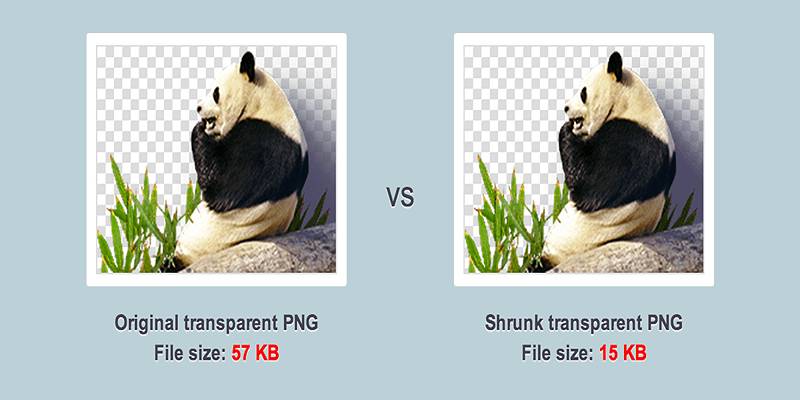
Even after resizing, image file sizes can sometimes still be large. Compressing images helps reduce file size further without making them look bad. It improves page speed and performance even more.
Some popular compression tools include:
- TinyPNG – Drag-and-drop image compression for PNG and JPEG formats
- Squoosh – A Google tool that shows image quality vs. size side-by-side
- ImageOptim – A Mac-specific app for reducing image file sizes quickly
Many of these tools support batch compression as well, which means users can resize and compress hundreds of images in just a few minutes.
Uploading Resized Images to WordPress the Right Way
Once the images have been resized and compressed, they are ready to be uploaded to WordPress. However, there are a few best practices users should follow:
- Use Descriptive File Names: Filenames like black-running-shoes.jpg help with SEO.
- Add Alt Text: Descriptive alt text improves accessibility and SEO.
- Avoid Uploading Full-Size Files: Select the appropriate image size (thumbnail, medium, large) in the WordPress media library.
- Use a Lightweight Format: I prefer JPEG for photographs and WebP for modern browsers.
By following these steps, users ensure that their WordPress media library stays optimized and organized.
Conclusion
Resizing images in batches before uploading to WordPress is one of the smartest practices for any website owner. It ensures faster page loading, better SEO, smoother user experience, and more efficient content handling. Whether it's done with a free online tool or a desktop application, batch resizing is quick, easy, and well worth the effort. Instead of letting bulky images slow things down, users can take control and keep their websites sharp, speedy, and professional. For anyone managing a WordPress site—big or small—batch resizing should be a regular part of the image upload workflow.
On this page
Why Batch Resize Images Before Uploading to WordPress? What Is Batch Resizing? Recommended Image Sizes for WordPress Tools for Batch Resizing Images Online Batch Resizing Tools Desktop Applications Step-by-Step Guide to Batch Resize Images (Online Method) Image Compression After Resizing Uploading Resized Images to WordPress the Right Way ConclusionRelated Articles

Everything You Need to Know About CapCut Video Upscaler

Best Audio Editors to Help You Produce Professional Podcast Episodes

Choosing the Right 4K Video Upscaler: Top Five Picks

Cloud-Based Spreadsheet Tips: Convert Excel to Google Sheets

Discover the Top Password Managers to Keep Your Accounts Secure
Free Tools to Convert HEX to RGB Codes for Designers and Developers

The 8 Best ChatGPT Alternatives for Businesses and Content Creators
Flowframes Review: Revolutionizing AI Frame Interpolation for Videos

Best Free Tools to Resize Bulk Images Before Uploading to WordPress
Neat Video Explained: Noise Reduction Without the Blur

10 Game-Changing VS Code Extensions Every Developer Should Install